
Adobe_Premiere_Pro_MCP
Adobe Premiere Pro MCP
Documentation
Languages: English | 日本語 | Tiếng Việt | 简体中文 | 繁體中文 | 한국어 | Deutsch | Español | Français | Italiano | Dansk | Polski | Русский | Bosanski | العربية | Norsk | Português (Brasil) | ไทย | Türkçe | ភាសាខ្មែរ
Start here: install the local bridge, open it in Premiere, then run `verify_premiere_connection` before editing.
Install | Codex plugin | Claude Code plugin | Verify | Telemetry | Privacy Policy | Terms of Service | Security
Install
The supported bridge is the included CEP panel. Install the npm package on the same computer as Premiere Pro and your MCP client:
npm install -g adobe-premiere-pro-mcp
premiere-pro-mcp --install-cep
premiere-pro-mcp --doctor
`--install-cep` installs the CEP bridge, enables the required Adobe CEP debug setting, prepares the bridge directory, and configures supported local MCP clients. `--doctor` verifies the server build, CEP installation, bridge directory, debug setting, and client configuration.
Then restart Premiere Pro, open `Window > Extensions > MCP Bridge (CEP)`, set the bridge directory shown by the installer, and start the bridge.
Requirements:
- Node.js 20+
- Adobe Premiere Pro 2020+
- Premiere Pro, the MCP client, and this package on the same computer
The bundled `uxp-plugin` is an experimental preview. It is shipped for evaluation but is not a replacement for the validated CEP bridge and is not installed by the CLI.
Codex plugin
From a clone of this repository, install the Codex plugin that bundles the MCP configuration and Premiere editing skill:
codex plugin marketplace add .
codex plugin add premiere-pro-mcp@adobe-premiere-pro-mcp
The plugin still requires the local CEP bridge. Run `premiere-pro-mcp --install-cep`, restart Premiere, start `Window > Extensions > MCP Bridge (CEP)`, then ask Codex to run `get_capabilities` followed by `verify_premiere_connection`.
Claude Code plugin
From a clone of this repository:
/plugin marketplace add .
/plugin install premiere-pro-mcp@adobe-premiere-pro-mcp
Install and start the CEP bridge with the same steps as above before using the plugin.
Claude Desktop one-click bundle
Each GitHub release includes an `.mcpb` bundle for Claude Desktop. Download the matching `adobe-premiere-pro-mcp-.mcpb` asset and open it in Claude Desktop to install the local MCP server. Its first launch installs the bundled CEP bridge for the current user.
Restart Premiere Pro, open `Window > Extensions > MCP Bridge (CEP)`, set the bridge directory, and start the bridge. Then ask Claude:
> Run `verify_premiere_connection`. Make no changes.
The MCPB bundle is unsigned. Install it only from this repository's GitHub Releases. CEP release archives are labeled accurately as unsigned or self-signed; self-signed does not mean Adobe Marketplace trusted.
MCP client configuration
The installer configures Claude Desktop on macOS and Claude Desktop plus GitHub Copilot in VS Code on Windows. For another MCP client, configure it to run:
{
  "mcpServers": {
    "premiere-pro": {
      "command": "premiere-pro-mcp"
    }
  }
}
To opt out of anonymous usage telemetry, add `"env": { "PREMIERE_MCP_TELEMETRY": "0" }` to that server entry. See Telemetry.
Install from source
Use source setup when developing the MCP, modifying the CEP panel, or troubleshooting a package install:
git clone https://github.com/hetpatel-11/Adobe_Premiere_Pro_MCP.git
cd Adobe_Premiere_Pro_MCP
npm install
npm run build
npm run setup:mac # macOS
On Windows, use `npm run setup:win` from PowerShell after `npm install` and `npm run build`.
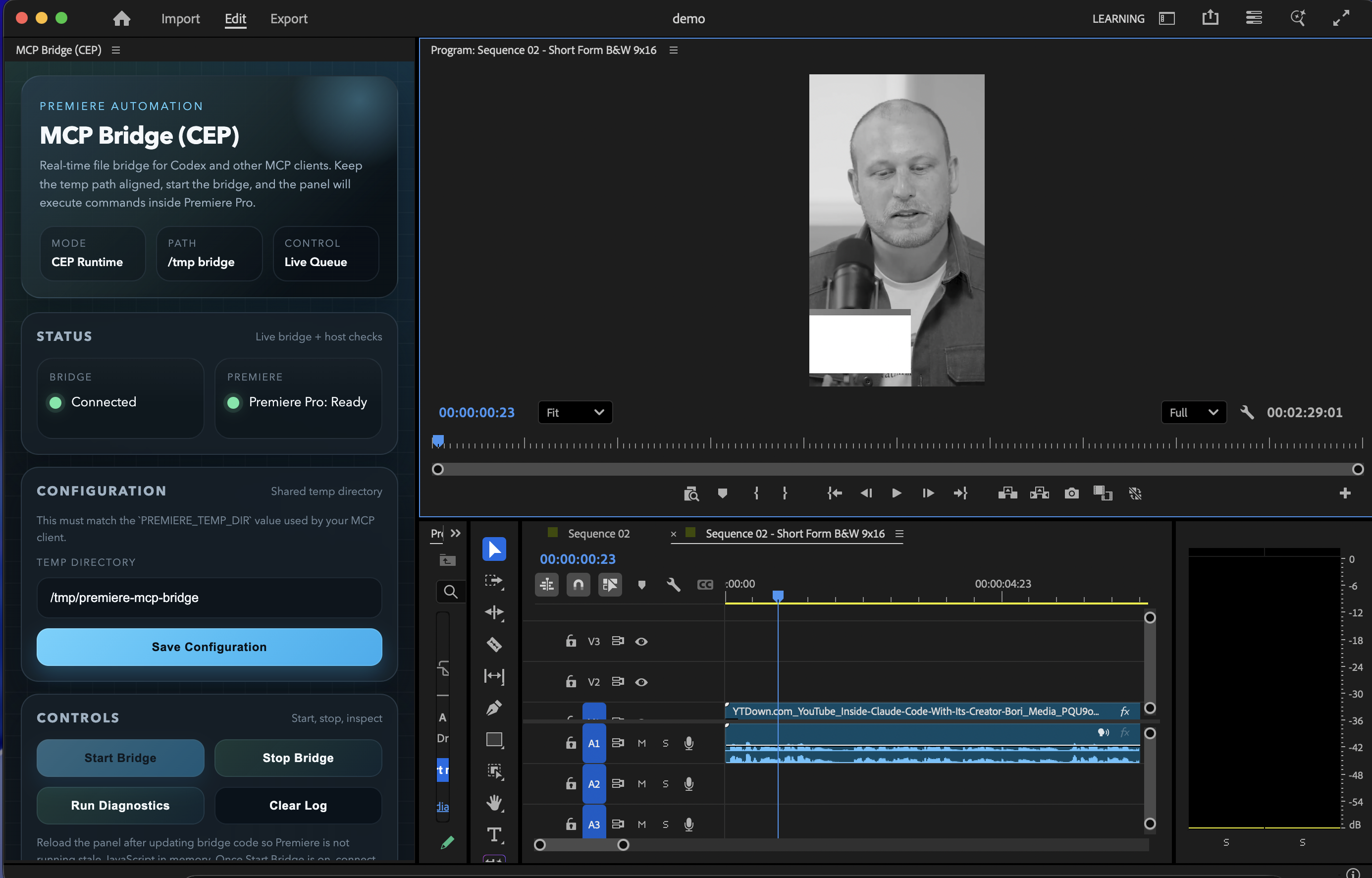
Current CEP panel UI inside Premiere Pro, using the refreshed bridge controls and status layout.
Current Status
This repository is currently validated for:
- macOS
- Windows installer/config smoke checks through GitHub Actions
- Adobe Premiere Pro 2020+ (actively used and tested on Premiere Pro 26.0)
- Node.js 20+
- MCP v2 server transport with modern stateless protocol discovery
- the included macOS installer path for Claude Desktop
- the included Windows installer path for GitHub Copilot in VS Code and Claude Desktop config
- manual MCP registration for Codex, Claude Code, and similar MCP clients
Current catalog status as of August 5, 2026:
- `283` MCP tools are exposed for AI-driven video editing
- coverage spans project setup, media ingest, bins, sequences, timeline editing, transitions, effects, keyframes, captions, markers, metadata, proxies, multicam, color, audio, exports, and higher-level assembly workflows
- the catalog includes practical agent workflows such as product-spot assembly, motion-graphics demos, timeline razoring, caption reads, audio ducking, scene edit detection, EDL import, export readiness validation, and linked audio/video operations
Most recent completed local live validation:
- `283` active tools are exposed; `get_capabilities` reports local installation and optional live connection state, while `verify_premiere_connection` is the canonical read-only bridge and host readiness check
- `0` known parked or placeholder tools are advertised
- `import_ae_comps` is intentionally not advertised because Premiere returned `false` for real `.aep` fixtures in this environment and a generic `.aep` import can wedge the CEP bridge
The full live sweep output is written to `/tmp/premiere-mcp-bridge/live-tool-sweep.json` when you run the verifier.
What You Get
The server covers project operations, ingest, sequence creation, timeline editing, transitions, effects, keyframes, metadata, exports, and higher-level assembly workflows.
Example prompts:
- "List all sequences and show me which one is active."
- "Import these three shots and build a rough product spot."
- "Add cross dissolves to every cut on video track 1."
- "Apply Gaussian Blur to the middle clip."
- "Apply the `Black & White` effect to the active short-form clip."
- "Razor the interview sequence at 12.5 seconds across all audio and video tracks."
- "Export the active sequence as FCP XML."
For monochrome looks, prefer `apply_effect` with `Black & White` instead of trying to force black and white through generic saturation-only adjustments.
Before editing, you can also attach the `premiere://config/get_instructions` resource to give the model Premiere-specific operating guidance.
For a predictable start to every session, first run `verify_premiere_connection`. It confirms that the CEP bridge responded and returns the Premiere build, open project, and active sequence without modifying the project.
High-level workflow tools included:
- `build_motion_graphics_demo`
- `assemble_product_spot`
- `build_brand_spot_from_mogrt_and_assets`
`assemble_product_spot` and `build_brand_spot_from_mogrt_and_assets` now support an optional `clipPlan` argument so an LLM can direct per-clip timing, track placement, transitions, motion, trims, effects, and color adjustments instead of relying on fixed template defaults.
Agent Skill
If you want Codex, Claude Code, or another agent to handle installation, verification, and day-to-day usage correctly, install the included Agent Skill:
npx skills add hetpatel-11/Adobe_Premiere_Pro_MCP --skill premiere-pro-mcpOr install directly from the skill path:
npx skills add https://github.com/hetpatel-11/Adobe_Premiere_Pro_MCP/tree/main/skills/premiere-pro-mcpThe skill teaches agents how to install the MCP, start and verify the CEP bridge, use the Premiere tools safely, import real media before editing, prefer sequence-aware operations, and run diagnostics when something fails.
Advanced Setup and Verification
For source installs, client-specific MCP configuration, Windows installer flags, diagnostics, and the live tool sweep, use QUICKSTART.md. It is the canonical setup guide and keeps this page focused on choosing and using the product.
The short version:
1. Install with `npm install -g adobe-premiere-pro-mcp`, then run `premiere-pro-mcp --install-cep`.
2. Restart Premiere Pro and your MCP client, then start `Window > Extensions > MCP Bridge (CEP)`.
3. Run `premiere-pro-mcp --doctor`, then ask the client to call `verify_premiere_connection` without making changes.
For manual registration in any MCP client, use the global command after npm installation:
{
  "mcpServers": {
    "premiere-pro": {
      "command": "premiere-pro-mcp"
    }
  }
}
The supported UI bridge is CEP. If Premiere does not expose the extension, enable UXP Plugins > Enable developer mode in Premiere preferences, restart Premiere, and reopen the CEP panel. The bundled UXP panel remains experimental.
For a real-host sweep, use a disposable Premiere project and run `node scripts/live-tool-sweep.mjs`; it creates temporary `Sweep ...` sequences in the current project.
How the Bridge Works
+-----------+        +-----------+        +-----------+
|  Client   |  MCP   | Node.js   | Files  | CEP Panel |
| (Codex+)  || MCP Server|| (Premiere)|
+-----------+        +-----------+        +-----------+
                                                 |
                                                 v
                                          +-----------+
                                          | Premiere  |
                                          | DOM / QE  |
                                          +-----------+
1. The client calls an MCP tool.
2. The Node server generates ExtendScript plus shared helpers.
3. The script is written into `/tmp/premiere-mcp-bridge`.
4. The CEP panel polls that directory and runs the script through `CSInterface.evalScript()`.
5. The panel writes the result back to the response file.
6. The server returns structured JSON to the MCP client.
Tools
All `283` advertised tools have an implementation. Tool schemas are available through MCP discovery; this catalog explains the editing surface in human terms. Start with `verify_premiere_connection`, then inspect the project before asking an agent to mutate it.
Discovery and project inspection
| Tools | What they do |
|---|---|
| `verify_premiere_connection` / `get_capabilities` | Read-only host readiness and local runtime capability checks. |
| `get_project_info` / `list_project_items` / `list_sequences` | Inspect the current project, media/bin inventory, and sequences. |
| `get_active_sequence` / `list_sequence_tracks` / `get_sequence_settings` | Read the current timeline, its clips/tracks, and sequence settings. |
| `get_full_project_overview` / `get_full_sequence_info` / `get_full_clip_info` | Return deeper project, sequence, or clip snapshots for planning. |
| `search_project_items` / `find_project_item_by_name` / `find_items_by_media_path` | Locate project items by name or media path. |
| `get_timeline_summary` / `get_timeline_gaps` / `get_used_media_report` | Summarize the edit, detect gaps, and report media in use. |
| `get_offline_media` / `check_offline_media` / `get_unused_media` / `get_duplicate_media` | Find missing, unused, or duplicated media before an edit or export. |
| `get_clip_properties` / `get_clip_speed` / `get_clip_at_position` / `get_clip_at_playhead` | Inspect clip framing, speed, and timeline position. |
| `get_premiere_state` / `get_version_info` / `ping` | Read a broad host state, Premiere version, or bridge health. |
Projects, media, and bins
| Tools | What they do |
|---|---|
| `create_project` / `open_project` / `save_project` / `save_project_as` / `close_project` | Project lifecycle and file operations. |
| `import_media` / `import_folder` / `import_image_sequence` | Bring video, audio, stills, or image sequences into the project. |
| `import_fcp_xml` / `import_sequences_from_project` / `import_sequences` | Import supported timeline interchange or sequences from another project. |
| `create_bin` / `rename_bin` / `delete_bin` / `create_smart_bin` | Create and organize project-panel bins. |
| `move_item_to_bin` / `move_items_to_bin` / `rename_project_item` / `rename_clip` | Organize and rename existing project items. |
| `delete_project_item` / `delete_multiple_project_items` | Remove project items explicitly. These are destructive operations. |
| `create_subclip` / `refresh_media` / `relink_media` / `replace_clip_media` | Create source ranges, refresh media, relink missing files, or replace clip media. |
| `get_metadata` / `set_metadata` / `get_xmp_metadata` / `set_xmp_metadata` | Read and write project metadata and XMP fields. |
| `get_footage_interpretation` / `set_footage_interpretation` | Inspect or change footage frame-rate and pixel-aspect interpretation. |
| `set_color_label` / `get_color_label` / `set_project_panel_metadata` | Label and annotate project-panel items. |
Sequences and tracks
| Tools | What they do |
|---|---|
| `create_sequence` / `create_sequence_from_preset` | Make an empty sequence from an installed `.sqpreset` without triggering Premiere's New Sequence dialog. |
| `create_sequence_from_clips` | Derive a sequence from pre-imported media when the clip settings should define the sequence. |
| `duplicate_sequence` | Copy a sequence; `clearContents: true` makes an empty reusable template with the source settings. |
| `delete_sequence` / `close_sequence` / `set_active_sequence` | Manage which sequence is open or active. |
| `get_sequence_structure` / `get_sequence_count` | Inspect a sequence layout or count project sequences. |
| `set_sequence_settings` / `set_sequence_frame_rate` / `set_sequence_resolution` | Change supported sequence settings. Verify results because Premiere can quantize or reject changes. |
| `set_sequence_audio_settings` / `set_sequence_pixel_aspect_ratio` / `set_sequence_field_type` | Adjust supported audio, pixel-aspect, and field settings. |
| `add_track` / `add_tracks` / `delete_track` / `rename_track` | Create, remove, and name audio/video tracks. Caption-track deletion returns an explicit unsupported result. |
| `lock_track` / `toggle_track_visibility` / `set_target_track` / `set_all_tracks_targeted` | Control edit protection, visibility, and track targeting. |
| `get_track_info` / `get_target_tracks` / `get_sequence_in_out_points` | Inspect tracks, targeting, and sequence in/out ranges. |
Timeline editing and trim operations
| Tools | What they do |
|---|---|
| `add_to_timeline` / `add_to_timeline_batch` | Place one or many project clips with per-clip source ranges and link-audio control. Batch placement returns per-clip results. |
| `insert_from_source` / `overwrite_from_source` / `overwrite_clip` | Perform three-point insert or overwrite editing from the Source monitor. |
| `remove_from_timeline` / `remove_selected_clips` / `ripple_delete` | Remove timeline clips. Ripple deletion closes the gap when the host supports it. |
| `move_clip` / `move_clip_to_track` / `set_clip_start_time` | Reposition a clip in time or on another track. |
| `split_clip` / `razor_timeline_at_time` / `razor_all_tracks` | Cut one clip or multiple tracks at a requested timeline point. |
| `trim_clip` / `roll_edit` / `slide_edit` / `slip_edit` | Adjust edit points and clip content timing. Structural QE edits are read back rather than trusted blindly. |
| `lift_selection` / `extract_selection` / `nest_clips` / `unnest_sequence` | Lift/extract a selected range or create/remove nests. |
| `duplicate_clip` / `replace_clip` / `enable_disable_clip` / `freeze_frame` | Duplicate, replace, enable, or freeze timeline material. |
| `link_audio_video` / `link_selection` / `unlink_selection` / `get_linked_items` | Manage audio/video link relationships. |
| `undo` / `redo` / `multiple_undo` | Revert or reapply recent Premiere operations. |
Effects, color, motion, and keyframes
| Tools | What they do |
|---|---|
| `list_available_effects` / `list_clip_effects` / `get_effect_properties` | Discover installed effects, applied effects, and their properties. |
| `apply_effect` / `remove_effect` / `remove_effect_by_name` / `remove_all_effects` | Add or remove visual/audio effect components. `apply_effect` identifies and reads back the new component. |
| `batch_apply_effect` / `copy_effects_between_clips` / `copy_effect_values` | Apply or copy effect treatments across clips. |
| `set_effect_property` / `set_color_value` / `set_blend_mode` | Change supported effect parameters, color values, and blend modes. |
| `color_correct` / `apply_lut` / `stabilize_clip` | Apply basic correction, LUTs, or Warp Stabilizer. |
| `crop_clip` / `add_adjustment_layer` / `get_clip_adjustment_layer` | Crop a clip or use an adjustment layer for shared treatment. |
| `set_clip_properties` / `set_clip_properties_batch` | Set opacity, scale, rotation, and position with verified per-property output. |
| `set_clip_position` / `set_clip_scale` / `set_clip_rotation` / `set_clip_anchor_point` | Address individual Motion transform values. |
| `add_keyframe` / `get_keyframes` / `remove_keyframe` / `remove_keyframe_range` | Create, inspect, and remove parameter keyframes. |
| `set_keyframe_interpolation` / `get_value_at_time` | Set interpolation or query a parameter value at a given time. |
Audio, transitions, and captions
| Tools | What they do |
|---|---|
| `adjust_audio_levels` / `set_clip_volume` / `set_clip_pan` | Set clip gain, volume, or pan. |
| `add_audio_keyframes` / `setup_ducking` | Build volume automation or a full ducking curve from supplied windows. |
| `mute_track` / `apply_audio_effect` / `apply_audio_effect_to_all_clips` | Mute a track or apply audio processing to one or many clips. |
| `detect_silence` | Analyze a local media file with ffmpeg and return silence ranges. It does not edit the timeline. |
| `list_available_transitions` / `list_available_audio_transitions` | Discover installed transition names. |
| `add_transition` / `add_transition_to_clip` / `batch_add_transitions` | Add one or many transitions. Results distinguish verified changes from accepted-but-unverified host responses. |
| `create_caption_track` | Create a caption track from an imported subtitle project item, such as an SRT. |
| `read_sequence_captions` | Reports scripting-visible caption data and explicitly flags that Premiere's DOM often cannot read existing caption text. |
Markers, selection, navigation, and playback
| Tools | What they do |
|---|---|
| `add_marker` / `update_marker` / `delete_marker` / `list_markers` | Create and manage timeline markers. |
| `add_marker_to_project_item` / `get_clip_markers` / `get_sequence_markers_by_type` | Work with markers on project items, clips, or sequences. |
| `set_sequence_in_out_points` / `clear_sequence_in_out` / `set_work_area` / `get_work_area` | Set or inspect sequence in/out points and work area. |
| `get_playhead_position` / `set_playhead_position` / `get_next_edit_point` / `move_playhead_to_edit` | Inspect and navigate the CTI/playhead. |
| `get_selected_clips` / `select_clips_by_name` / `select_clips_in_range` | Inspect or create targeted timeline selections. |
| `select_all_clips` / `deselect_all_clips` / `select_disabled_clips` / `invert_selection` | Broader selection controls. |
| `open_in_source` / `close_source_monitor` / `set_source_in_out` / `clear_item_in_out` | Control Source monitor media and source in/out points. |
| `play_timeline` / `stop_playback` / `play_source_monitor` | Start or stop timeline and source playback. |
Delivery, interchange, and media management
| Tools | What they do |
|---|---|
| `validate_project_for_export` / `get_encoder_presets` / `get_export_file_extension` | Validate a delivery, discover readable user `.epr` presets, and resolve output extensions. |
| `export_sequence` / `add_to_render_queue` | Queue a sequence through Adobe Media Encoder using a real preset path or exact preset name. |
| `get_render_queue_status` / `start_batch_encode` | Report queue-monitoring availability or start supported batch encoding. |
| `export_frame` / `capture_frame` | Write a still image from a sequence or capture a frame. |
| `export_as_fcp_xml` / `export_aaf` / `export_omf` | Export supported interchange formats. |
| `encode_project_item` / `encode_file` / `export_as_project` | Encode a source item/file or export a project representation. |
| `manage_proxies` / `has_proxy` / `detach_proxy` | Inspect, attach, or detach proxies. |
| `set_offline` / `refresh_media` / `set_scale_to_frame_size` | Change offline status, refresh media, or apply frame-size scaling. |
| `consolidate_duplicates` / `consolidate_and_transfer` | Consolidate duplicate items or prepare a transfer workflow. |
Graphics, workflows, workspace, and advanced operations
| Tools | What they do |
|---|---|
| `add_text_overlay` / `import_mogrt` / `import_mogrt_from_library` | Add a MOGRT and optionally populate supported text fields. |
| `get_mogrt_component` / `get_graphics_white_luminance` / `set_graphics_white_luminance` | Inspect Motion Graphics components and graphics white luminance. |
| `build_motion_graphics_demo` | Create a complete demo sequence with generated assets, dissolves, and subtle animation. |
| `assemble_product_spot` / `build_brand_spot_from_mogrt_and_assets` | Assemble real media into a directed product/brand edit with optional clip plans and MOGRT overlays. |
| `auto_reframe_sequence` / `detect_scene_edits` / `scene_edit_detection` | Use Premiere-assisted reframing or scene-change detection where the host supports it. |
| `get_workspaces` / `set_workspace` | Inspect and switch Premiere workspace layouts. |
| `create_bars_and_tone` / `set_transcode_on_ingest` / `set_scratch_disk_path` | Generate utility media or manage ingest and scratch-disk behavior. |
| `execute_extendscript` / `evaluate_expression` / `inspect_dom_object` | Advanced diagnostic and scripting operations. Use only with trusted inputs and explicit user intent. |
Additional supported operations
The remaining catalog covers lower-level control of media properties, project settings, display formats, anti-aliasing, poster frames, color labels, selection, track targeting, project paths, and project counts. It includes `set_override_frame_rate`, `set_override_pixel_aspect_ratio`, `set_frame_blend`, `set_time_interpolation`, `set_poster_frame`, `set_anti_alias_quality`, `set_uniform_scale`, `set_scale_width_height`, `set_sequence_display_format`, `set_project_scratch_disk`, `get_project_scratch_disks`, `get_all_project_paths`, `get_total_clip_count`, `get_insertion_bin`, `is_work_area_enabled`, and `match_frame`.
Use MCP introspection in your client for each tool's exact input schema and return shape. An agent should inspect first, make a focused mutation, and read back the affected state before continuing a multi-step edit.
Real Limits
- A self-signed CEP `.zxp` confirms archive integrity but is not Adobe Marketplace approval or a public trust guarantee. The reproducible signing workflow requires private certificate secrets and target-platform Premiere validation.
This project is much more usable than the original prototype, but it is not magic.
- Premiere scripting still does not expose every UI operation cleanly.
- Professional title design still depends on real MOGRT assets or external graphics workflows.
- `get_render_queue_status` is only useful when Adobe Media Encoder integration is available.
- The best results come from real source footage, real audio, and real brand assets. The automation layer assembles and manipulates them; it does not replace editorial judgment.
Telemetry
Anonymous usage telemetry is on by default so we can see how many people run the server and which tools they call.
Each event is an install id, a tool name, success or failure, duration, OS, and package version. Failures also include a short error code, the Zod field names that failed, and a path-stripped error template. Project names, media paths, arguments, and results are not sent. Details are in PRIVACY.md.
Opt out in any of these ways:
- Uncheck Share anonymous usage data in `Window > Extensions > MCP Bridge (CEP)`
- Set `"telemetry": false` in `~/.premiere-mcp-bridge/config.json`
- Set `PREMIERE_MCP_TELEMETRY=0` in the MCP server environment
- Set `DO_NOT_TRACK=1`
Updates
When a newer package is on npm, the MCP Bridge panel shows Update now and Later. Later snoozes the prompt for 7 days. Agents also see this on `get_capabilities`. Opt out with `PREMIERE_MCP_UPDATE_CHECK=0` or `"updateCheck": false` in `~/.premiere-mcp-bridge/config.json`.
Troubleshooting
If the tools are visible but calls fail:
1. Confirm Premiere Pro is open with a project loaded.
2. Open `Window > Extensions > MCP Bridge (CEP)`.
3. Confirm the temp directory is exactly `/tmp/premiere-mcp-bridge`.
4. Click `Start Bridge`.
5. If you updated the bridge code, right-click the panel and choose `Reload`.
6. Retry the command.
If the MCP client cannot find the server:
1. Verify the absolute path to `dist/index.js`.
2. Verify `PREMIERE_TEMP_DIR=/tmp/premiere-mcp-bridge`.
3. Restart the MCP client after changing config.
4. Run `npm run setup:doctor`.
Developer Notes
Useful commands:
npm run build
npm test -- --runInBand
npm run setup:doctor
node scripts/live-tool-sweep.mjs
See:
- `QUICKSTART.md` for the shortest install path
- `KNOWN_ISSUES.md` for current limits
- `CONTRIBUTING.md` for development workflow
Frequently asked questions
What is Adobe_Premiere_Pro_MCP?
Adobe_Premiere_Pro_MCP is Adobe Premiere Pro MCP
How do I install Adobe_Premiere_Pro_MCP?
Open the GitHub repository and follow its README. Most MCP servers are added to your client's MCP config, then called by your agent.
Is Adobe_Premiere_Pro_MCP open source?
Yes — it is hosted on GitHub at https://github.com/hetpatel-11/adobe_premiere_pro_mcp and has 4 stars.
Related MCP tools
 mcp-remote
Connect an MCP Client that only supports local (stdio) servers to a Remote MCP Server, with auth support: TypeScript-based implementation.
 mcp-get
- Discover available MCP servers from our curated registry TypeScript-based implementation.
 cherry-studio
🍒 Cherry Studio is a desktop client that supports for multiple LLM providers. Built for the Model Context Protocol to enhance AI capabilities.
 librechat
Enhanced ChatGPT Clone: Features Agents, MCP, DeepSeek, Anthropic, AWS, OpenAI, Responses API, Azure, Groq, o1, GPT-5, Mistral, OpenRouter, Vertex AI, Gemini...
 fastgpt
FastGPT is a knowledge-based platform built on the LLMs, offers a comprehensive suite of out-of-the-box capabilities such as data processing, RAG retrieval, ...
 composio
Composio equips your AI agents & LLMs with 100+ high-quality integrations via function calling for the Model Context Protocol. Enhance AI assistants with powerf
Run your own MCP server? See who uses it and what to fix.
Measure it with TrackMCP